Showing posts with label helping. Show all posts

Tuesday, 20 August 2013

Top 5 inspiring windows 7 themes for Hackers


1-  BlueVision Alpha
Blue vision aplha v2.0 is one of the best rainmeter skins, you'll Get lot of attractive widgets in this theme, you can make it more awesome by changing background.
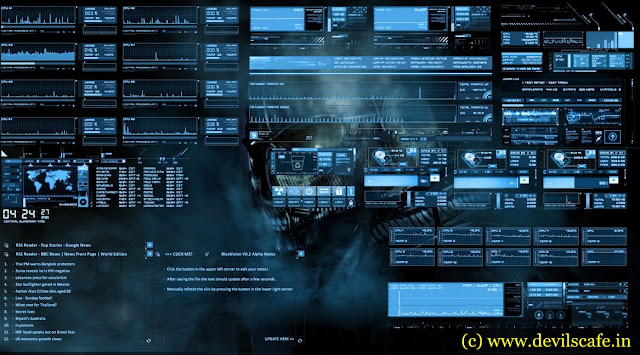
blue+vision+alpha.jpg (1167×647) 
Download

2- Jarvis (iRon Man Skin)
Jarvis is a Iron main inspired rainmeter skin, you can convert into hackers theme using new widgets and changing background image,Jarvis skin's centrel interface is damn cool.

Download

3-Tron Legacy ( 3D desktop )

download

4- Alien 3d Rainmeter Skin
alien 3d is amazing skin, it will give a 3d Look to your desktop

Download

5- Blue HDD

Download

Experiment : You can Make your desktop more amazing and awesome, by merging all skins's widgets/pulgins together , take a look, i've made it with blue vision alpha and jarvis

How To Install These Themes :

There are two ways to install
Rainmeter skins which are
Automatically and Manually. If
you have a Rainmeter skin with
extension .rmskin then you
automatically install the skins
with double click. Again you have
a skin with extension
like .zip/.rar/.7z archive then you
have unzip the skin archive put
the unzipped files into the
Rainmeter skin folder. Here I’m
going to show the two ways to
install Rainmeter skins.
Install Rainmeter Skins
Automatically
You can easily install a Rainmeter
skin automatically if it comes
with extension .rmskin.
The .rmskin is a skin format of
Rainmeter skin packager.
The .rmskin skin extension is
associated with Rainmeter skin
installer so, when you double
the skin it get installed
automatically.
Generally a Rainmeter skin
with .rmskin extension may
contain different components if
the author of the skin associate
those components. These
components may include Skins,
Layouts, Plugins, Fonts, Addons
and so on.
Install Rainmeter Skins
Manually
Rainmeter skins which comes in
a archive with extension like
.zip/.rar/.7z and other. To install
these types of skins you have to
unzip the skin archive. To extract
the skin archive you must have a
archive extractor installed on
your computer. You can use
Winrar, 7-Zip or other software
to extract the skin archive. After
extracting the skin archive copy
the extracted folder paste into
the Rainmeter skin directory. You
access Rainmeter skin directory
following the path below:
Windows 7: C:
UsersYourNameDocumentsRain
meterSkins Windows XP:
C:Documents and
SettingsYourNameMy
DocumentsRainmeterSkins
Finally, right-click the Rainmeter
icon from the notification area
and select Refresh all. The new
skins you installed will now be
available to load from the
Manage window or context
menus.
- See more at: http://cyber-worldd.blogspot.com/2013/06/top-5-inspiring-windows-7-themes-for.html#sthash.pOm9jnui.dpuf

COMMON ERROR OF PC AND THEIR SOLUTION


CALM MIND

Hello..
Today I have tried to gather some common PC errors that we face daily life but we can't understand sometimes exact problem and their temporary solutions. I hope you guys would love the post and should have positive respose about this article so, lets start.... 


1. MONITOR LED IS BLINKING
Check all the connections like Monitor Cable, Data cables, RAM, Display Card , CPU connections.sometimes loose connection may cause this type of problem.

2. CONTINUOUS THREE BEEPS
Problem in RAM Connection .mostly of beeping sounds produced form RAM.

3. THREE BEEPS ( 1 Long 2 Short)
Problem in Display Card Connection..MAKE IT CLEAN

4. THREE LONG BEEPS PERIOD WISE
Problem in BIOS or RAM (Basic Input Output System)(Ram Access Memory)

5. CONTINUOUS NON-STOP BEEPING
Key Board Problem (I.e.; Some Key is pressed for Longer time)

6. FDD LED IS GLOWING CONTINUOUSLY
Data cable to be connected properly (twisted cable).do not use brakeble wire.

7. NO DISPLAY ON THE SCREEN AT ALL

Hard Disk cable connected wrongly. Connect rightly seeing the Red mark (Faces power supply) and then Restart.chek it from cpu to monitor.

8. POWER LED IS OFF
a. Check main power cord
b. Check S.M.P.S.
c. Check Mother Board connection
d. Check switch once again at cpu and monitor

9. SHOWING CMOS ERROR
Replace 3 Volt battery of Mother Board . Set Original Settings Manually.(Refer­ CMOS Setup chart) Enter your search terms.Submit search form.

10. SHOWING FDD ERROR OR FLOPPY DRIVE IS NOT WORKING PROPERLY
Check Power cord of FDD , Data Cables , set CMOS & Finally the Check drive.

11. SHOWING HDD ERROR OR HARD DISK FAILURE

a. Check Power Cord
b. Check connection of HDD
c. Check Data cable
d. Check Hard Disk parameters in CMOS or Auto detecting Setting Partitions by Fdisk Command, then format it to set track 0.

12. MOTHER BOARD HANGS DUE TO UNSTABILIZED POWER SUPPLY
a. Check S.M.P.S
b. RAM not functioning properly.
c. Software problem (due to using pirated software)
d. CPU fan not functioning properly.
e. warm air shouldn't be temperd inside CPU.

13. DANCING SCREEN
a. Check Display card connection
b. Virus Problem
c. Video Memory Problem

14. SHAKING SCREEN
a. Earthing problem
b. Magnetic waves comes around.

15. CPU CABINET SHOCK
a. Check Earthing
b. Check main power cord.

16. NON-SYSTEM DISK ERROR

a. Floppy Drive having different disk (Non-Bootable Disk) OR CMOS Parameters for Hard Disk may not be set properly.
b. Hard Disk Partitions may not be created.
c. Hard Disk may not be formatted.

17. MISSING OPERATING SYSTEM
The System files missing namely Ie; command.com} -User File IO.SYS & MS_DOS.SYS } - Hidden Files. These above three files required for Start up of the system that can be transferred by using SYS C: Command OR While the time of formatting by using Format c:/u/s

18. MISSING COMMAND INTERPRETOR
May the file Command.com is corrupted OR Infected by Virus OR Some one has Erased it.

19. SHOWING I/O ERRORa. The type of Hard Disk in CMOS may not be set properly.
b. Operating system used for formatting is not valid.

20. SHOWING DIVIDE OVER- FLOW MESSAGE
a. May some Directories or Files crash with other files.
b. Use CHKDSK/F or SCANDISK Command to correct it.

21. HARD DISK MAKING NOISE WHILE PROCESSING
a. Unstabilized power supply.
b. Check for Loose Contact.
c. Do not use Y Connectors for Hard Disk.
d. It may create Bad Sector OR Weak Hard Disk.

22. HARD DISK HANGS WHILE PROCESSING
Check for Bad Sector by using CHKDSK or SCANDISK Command. If found format the Hard Disk and set Partition before that area.(This is the only procedure to use Hard Disk with Bad Sector) OR (To avoid Bad Sectors use Standard Power Supply)

23. HARD DISK NOT DETECTED
a. Check Power Connector
b. Check Data Cables
c. Check Jumpers

24. PARTITION NOT SHOWN
Operating System where the Hard Disk formatted is not supported with present Mother Board. For Eg: Hard Disk formatted with Pentium System will hide their partitions for 486 System.

25. MMX/DLL FILE MISSING
May the above files may be corrupted due to power failure or Virus. Make available above files from other Computer. OR Reinstall Windows 98 Operating System. (This procedure will not make any effect on existing Data).

26. WINDOWS REGISTRY ERROR
This will happen due to sudden ON/OFF of the system. Final solution is to Reinstall Operating System.

27. DISPLAY COLOUR DOES NOT MATCH
a. Configure Display Card properly with their CD.
b. The Standard setting for Windows is set it to 800x600 for better performance.

28. UNKNOWN DEVICE FOUND
May the Driver utility is not provided with operating system . Insert Driver CD and install software for the above Device...
- See more at: http://cyber-worldd.blogspot.com/2013/08/common-error-of-pc-and-their-solution.html#sthash.KVcGmAau.dpuf

Monday, 19 August 2013

Automatically download and install software on one click


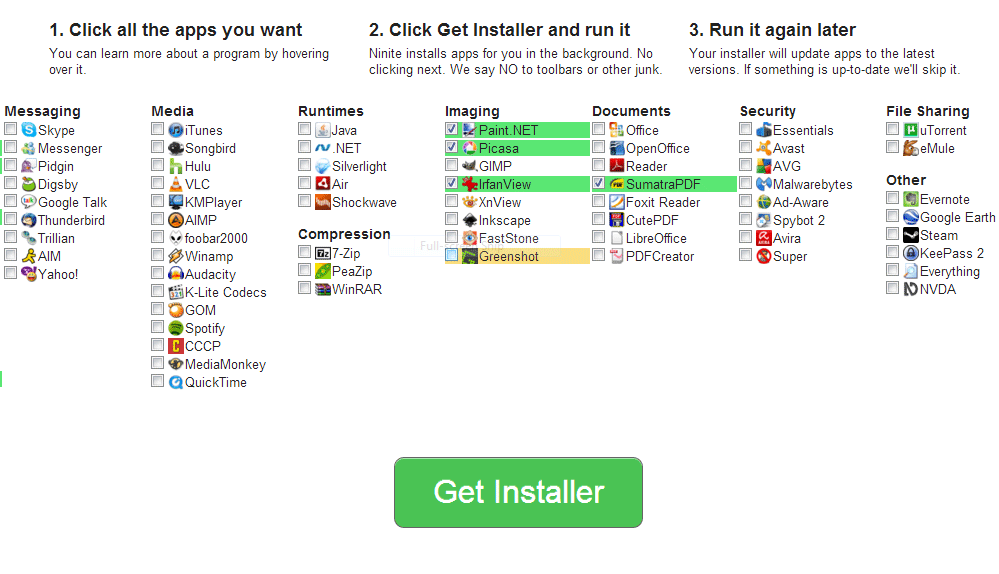
Whenever you do a fresh install of Windows or buy new PC you have to go through one tedious task. Which is to download and install software that are essential to run your PC. Downloading and installing latest version of each software takes a lot of time. Moreover some software installers are like riddles. One wrong move and your home page will be replaced by a shady search engine, computer will be filled with toolbars you  don’t want or other crap-ware.
Thankfully there is great software called Ninite which do all the work for you. You just have to visit its homepage. Select your favourite softwares. Download the multi application installer and run it.  Now just sit back and relax. It will install and update everything without any interrupts.
Here is the summary of the steps:

Step 1:

Visit www.Ninite.com and select you favourite applications. (Ubuntu users go here www.ninite.com/linux )

Step 2:

Download the installer and run it.
installing-applications

Step 3:

There  is no step 3. Were you expecting one ? Just relax or do some other work and let the installer install the softwares.

What we liked about it

  1. No interrupts, completely automated.
  2. If you already have a software it will update it.
  3. It parallely downloads one software and installs the other. Hence its fast.
  4. No need to worry about unwanted toolbars. It will automatically skip it for you.
  5. 64 bit version of the software will be installed if it is available when you are on a 64 bit OS.

What we didn’t like

  1. Software setups are deleted after install. Not an ideal solution for people with slow connections.
  2. Both 32 and 64 bit Java are installed on a 64 OS. Maybe a pro for some people.
  3. Limited selection of softwares. We could not find our favourite PotPlayer.

Counter